
Inviting Your Dependents
to RxSaveCard
If dependents are eligible under your employer’s RxSaveCard program, they’re already in our system – you just need to send them their invite. Here’s everything you need to know.

HOW IT WORKS:
- Your dependents are likely already in our system. We just need their email addresses to send activation links.
- Once a dependent activates their account, it's entirely their own - their own card, their own dashboard, and their account info is private to them.
- You can send invites in two places: during your own activation (best option if you don't plan to create your own account), or anytime from your member dashboard.
Option 1 - Using Your Own Invite Link
✓ Step 1: Click your own account activation link
Locate your own account activation link in your email inbox (or click here if you’d like to resendit) and begin the activation process. It will prompt you to set a password, which you can use to log back in and manage dependents later on as well – even if you don’t plan on fully activating your own account.
✓ Step 2: Click "Yes" when prompted to add dependents
A screen will appear asking if you’d like to send their activation emails now or skip it for later. Click “Yes” if you would like to do so now. If you click “Skip for now”, it will send you into the next step of the activation flow. If you do not see this option, then it means we have no dependents associated with your account on file.

✓ Step 3: Enter and/or edit dependent email address(es)
Each dependent we have on file will be listed. Type in their email, and we will send them a link to set up their own account. You can edit their email address and resend up until the moment they set a password for their own account.
✓ Step 4: Log out or complete your own account activation
You can continue setting up your own full account, or log out – it’s entirely up to you! The dependent invites are already sent either way.
Option 2 - From Your Member Dashboard
✓ Step 1: Log in to your Member Dashboard
Use the password you created when activating your account, and log in to your RxSaveCard Member Dashboard. If you chose to skip it during activation, or need to come back and make updates, you can manage dependent invitations from your dashboard at any time.
✓ Step 2: Click "Manage Dependents"
Look for the “Manage Dependents” button – it lives in its own widget on your dashboard, and in the dropdown menu in the top navigation. If you do not see this option, then it means we have no dependents associated with your account on file.

✓ Step 3: Enter and/or edit dependent email address(es)
Each dependent we have on file will be listed. Type in their email, and we will send them a link to set up their own account. You can edit their email address and resend up until the moment they set a password for their own account.
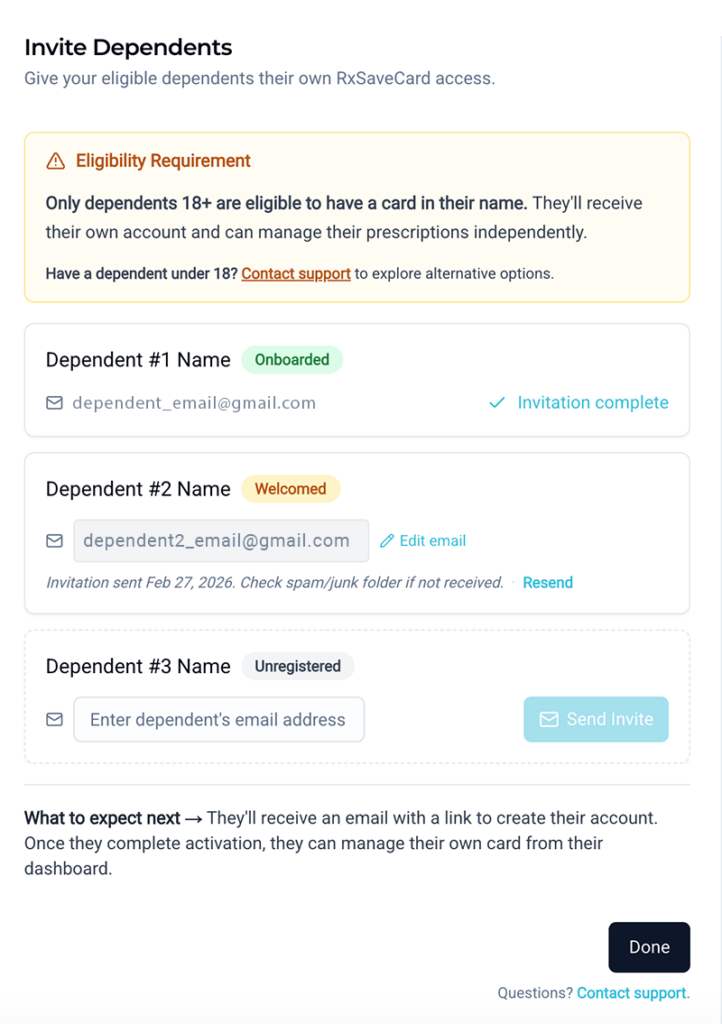
✓ Step 4: Done! You can come back to manage dependents anytime.
You can come back to this modal anytime if you would like to add dependent emails later on.
Frequently Asked Questions
Due to banking regulations, dependents under 18 aren’t eligible to hold their own card account. That said, there may be alternative arrangements available depending on your employer’s plan setup. Reach out to our support team and we’ll help you explore what options are available for your family.
If someone isn’t listed, it’s possible they were enrolled separately and have their own unlinked account. Have them try the “Request a Code” link on the login page to see if they can locate their account that way. If that doesn’t work, they’ll need to contact their employer’s HR or benefits team to request enrollment.
Once a dependent has created their own password, their email address can no longer be updated from your account. They’ll need to contact our support team directly to request that change.
Have them check their spam or junk folder first – activation emails sometimes land there depending on their email provider. If it’s still nowhere to be found, you can resend it from the Manage Dependents modal in your dashboard.